Musician workflow guide
How to make a vertical split-screen music video on Mac.
Use one guide take, record overdubs against the same timing, add a visible or audible cue, stack the 9:16 canvas, balance sound, and export a social-ready MP4.
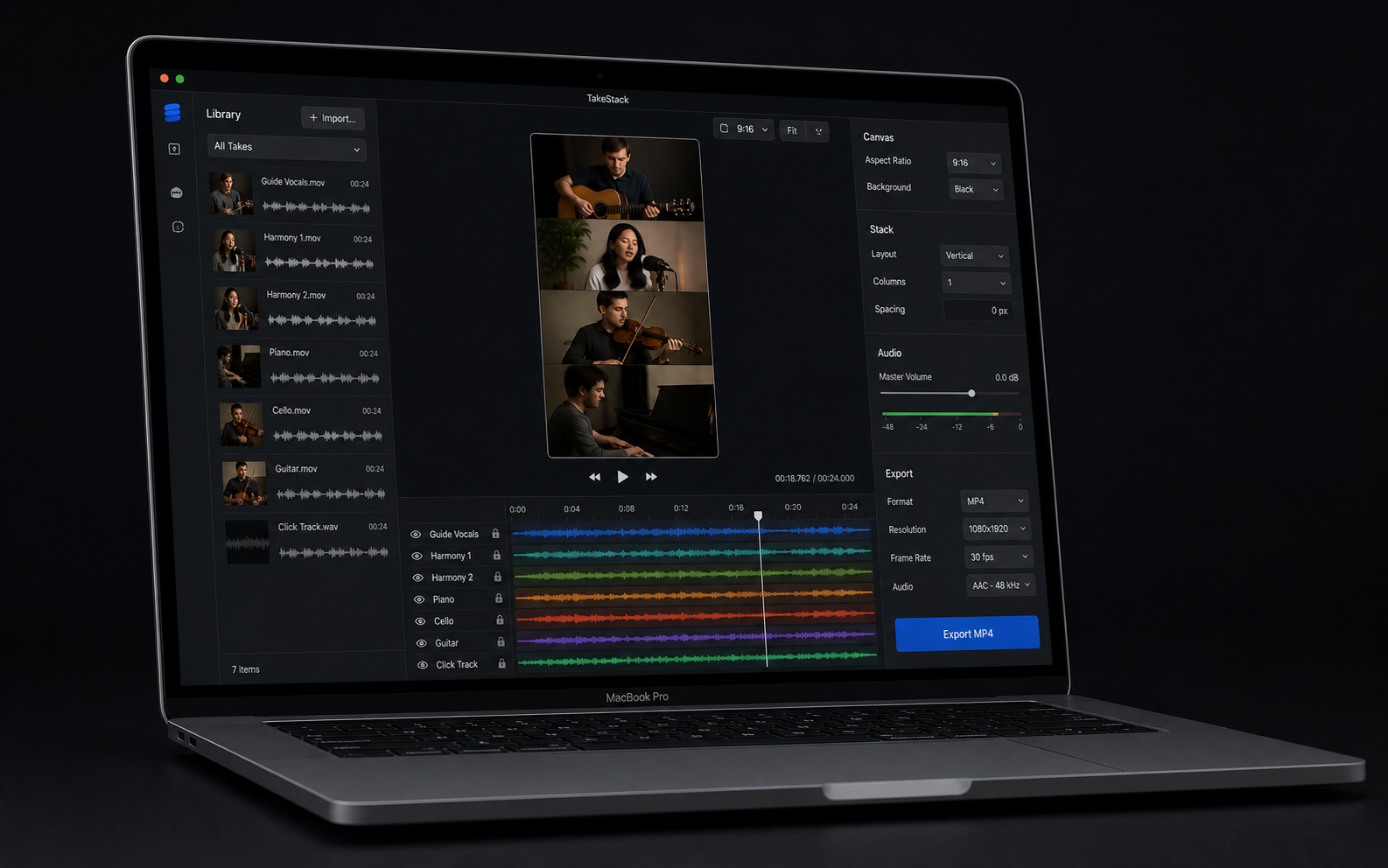
The reliable version of this workflow starts before editing.
Most timing problems come from source footage that was recorded against different references. Keep the capture simple, then the edit becomes a repeatable stack instead of a rescue job.
-
Record one guide take
Use a main vocal, instrument, click, backing track, or rehearsal take as the timing reference.
-
Record overdubs against that same guide
Use headphones so the guide does not leak into every phone recording unless you want it there.
-
Add one clear cue
A clap, count-in, lyric, entrance, or first note gives every take a shared moment to line up.
-
Keep phone clips vertical for 9:16 output
Portrait source clips make the final TikTok, Reels, and Shorts export easier to frame.
-
Stack, balance, preview, and export
Arrange the grid, balance each take, check sync by ear, then export a 1080 x 1920 MP4.
TakeStack is built around this exact Mac workflow.
It is a local direct-download beta for musicians who want guide plus overdub videos, cue-based sync, musician-friendly layouts, and a vertical social export without a pro timeline or cloud upload.
- No account or cloud upload for source videos
- Slate-assisted automatic lineup for TakeStack-recorded takes, plus manual fine-tuning by cue
- Duet, quartet, choir grid, and lead-with-backing layouts
- Founder license is $49 one-time for the first 100 buyers
- First 10 paid buyers get a same-day founder export check by email
- 14-day founder refund if the beta cannot get you to a real export
Use the guide, then try the focused tool.
If you are making split-screen music covers, acapella stacks, choir clips, worship-team parts, or lesson exports, TakeStack is designed to remove the repeated setup work.